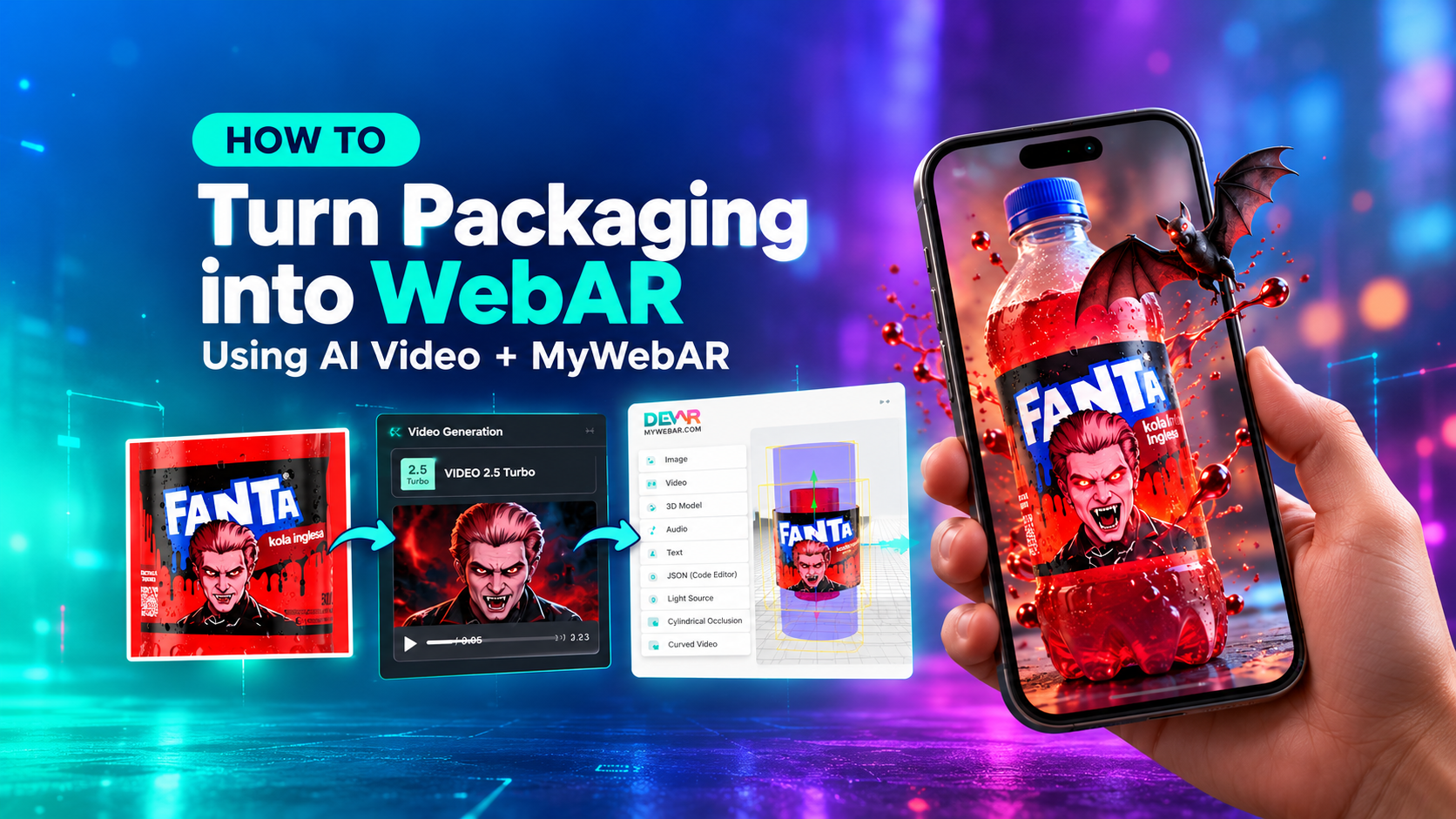
What if a bottle label could come alive? XR creator Emilius | AR + AI shows how to turn a Halloween-themed Fanta bottle into an interactive WebAR experience — complete with an AI-animated vampire, a flying 3D bat, and effects that wrap around the bottle.
His tutorial combines Kling AI, Filmora and MyWebAR. Kling generates the animation, Filmora prepares it for transparency, and MyWebAR brings the pieces together in a browser-based AR scene. No coding is needed to assemble the experience in MyWebAR.
Step 1. Prepare the Label for Curved Image Tracking
Every AR experience needs something recognizable to anchor the digital content. For this project, Emilius chose a Halloween-themed Fanta bottle featuring Dracula.
He photographed the label and opened the image in a graphic editor. Since the artwork wraps around a bottle, he positioned the main design in the center and extended the image on either side to prepare a wider target for cylindrical tracking.
The prepared image would become the marker that MyWebAR recognizes through a smartphone camera. It’s a small but essential preparation step: a good target makes the rest of the experience possible.
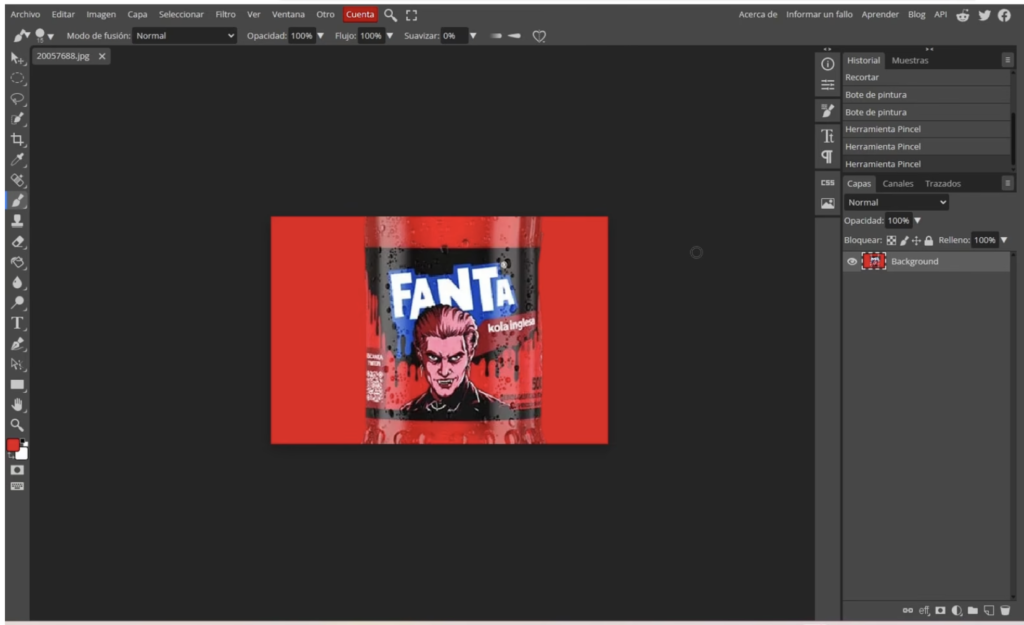
Image 1. Preparing the Fanta bottle image for a curved AR marker. Image credit: Emilius | AR + AI.
Step 2. Create a Curved Image Project in MyWebAR
Next, Emilius opened MyWebAR and selected a new project using AR on a Curved Image. He uploaded his prepared target and checked the platform’s assessment of image quality. The marker received a five-star rating for its visual characteristics.
Once inside the editor, he could begin building the scene around the cylindrical target. Curved image tracking is the foundation of this project: it allows digital content to stay anchored to the bottle’s rounded label rather than a flat page.
For a closer look at the basics, see our tutorial: How to Create an AR Project with a Cylindrical Marker.
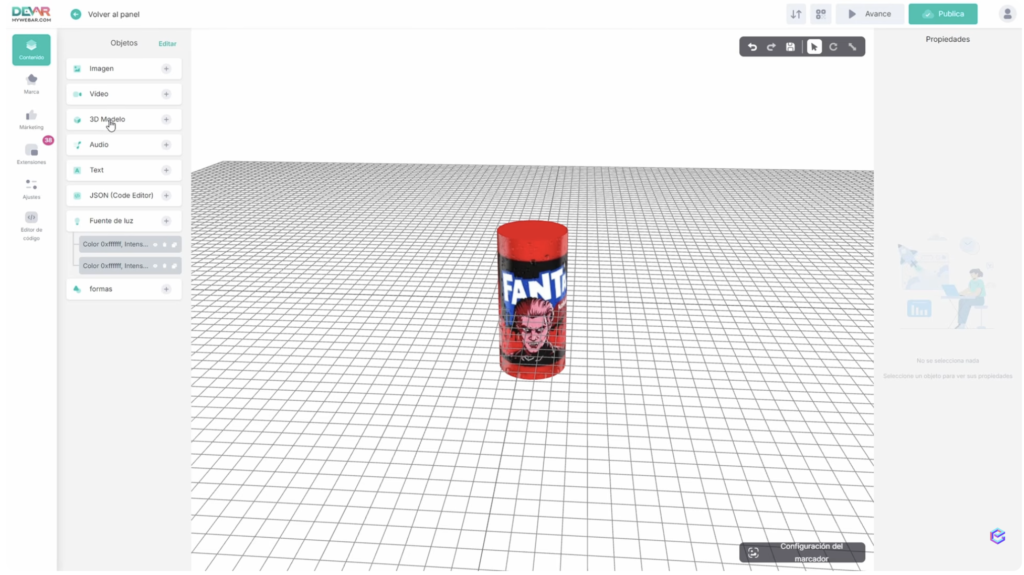
Image 2. Building a cylindrical AR scene in the MyWebAR editor. Image credit: Emilius | AR + AI.
Step 3. Generate the Dracula Animation with AI
Instead of animating the label from scratch, Emilius turned to Kling AI. He uploaded his Fanta artwork into the video-generation tool, selected the 2.5 Turbo model, and described a short horror sequence in a prompt.
The scene gradually darkens, Dracula becomes more menacing and reveals his sharp fangs, and the Fanta logo returns with a Halloween-inspired finish. Emilius generated a 10-second clip at 720p, which he considered adequate for this WebAR use case.
He then used Filmora to prepare the result for augmented reality. By applying a mask and placing the video on a green background, he isolated the part of the animation he wanted to display on the label. That preparation makes it possible to remove the green background later in MyWebAR.
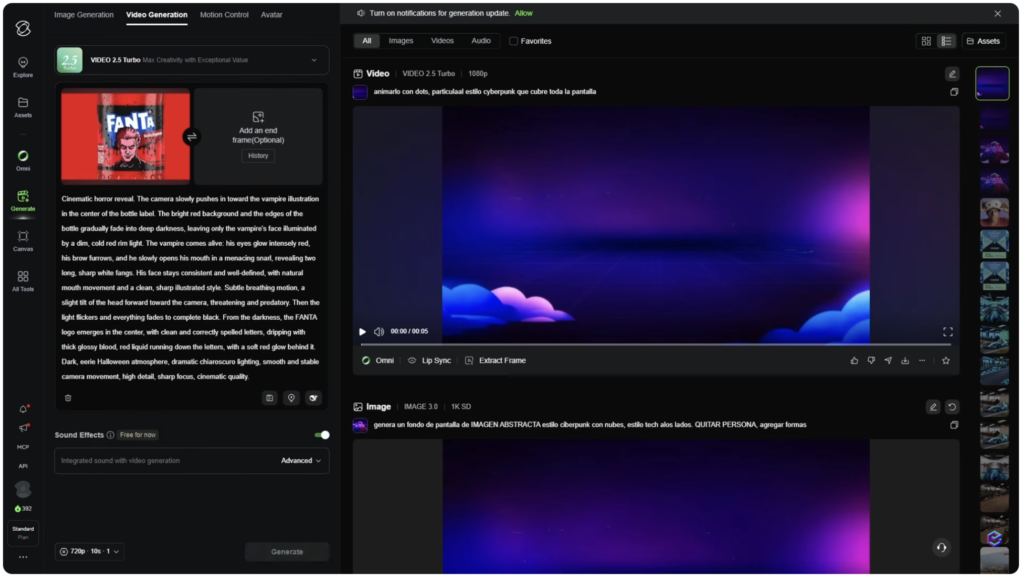
Image 3. Using Kling AI to animate the label artwork before preparing it for AR. Image credit: Emilius | AR + AI.
Step 4. Find and Install the Curved Video Extension
Back in MyWebAR, Emilius opened Extensions and searched for Curved Video. This extension is central to the effect: a conventional flat video would not follow the bottle’s rounded shape.
After installing it, he added the prepared video to the project. The extension offers controls that let creators display animated content on a cylindrical surface.
This is also a good reminder that MyWebAR projects can go beyond static overlays. Extensions help creators add more specialized behavior without having to build those features in code.
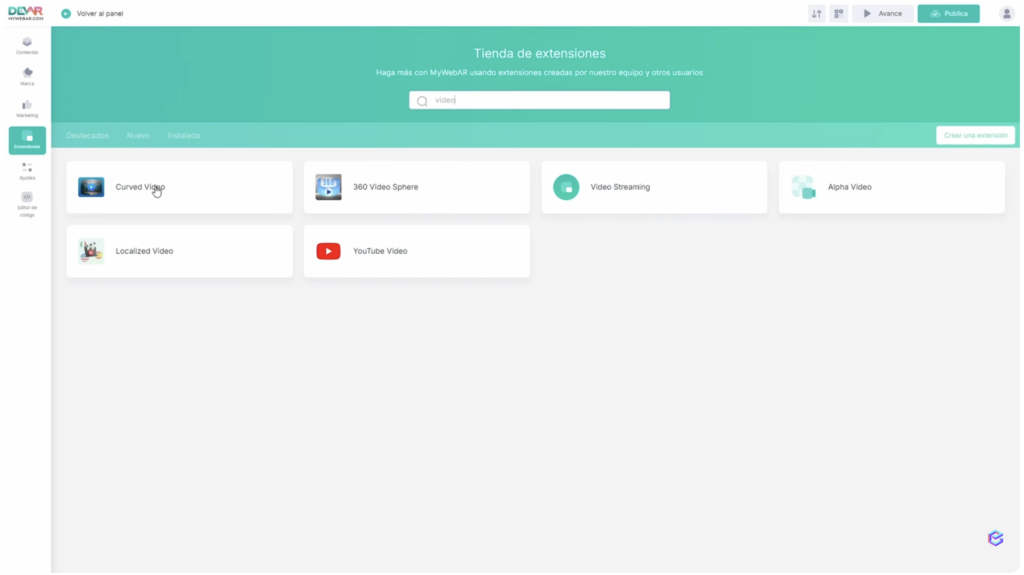
Image 4. Finding the Curved Video extension in MyWebAR. Image credit: Emilius | AR + AI.
Step 5. Position the Video and Remove the Green Background
Emilius selected Green Screen in the Curved Video settings and used green as the key color. This removes the artificial background from the edited clip so that the animated vampire and branding can appear against the physical package.
He adjusted the curved video’s size, position and orientation until the moving artwork aligned with the bottle label. The careful alignment matters: even a strong animation will look less convincing if it floats away from the physical object.
If you’re getting started with scene editing, our MyWebAR Editor Overview covers the main tools for placing and adjusting content.
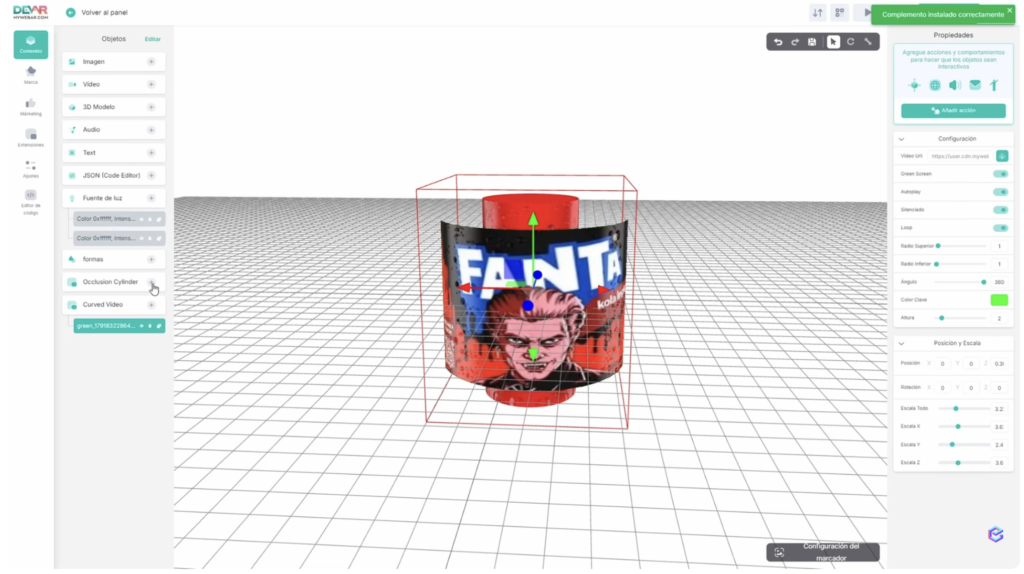
Image 5. Adjusting Curved Video and its green-screen settings in the AR scene. Image credit: Emilius | AR + AI.
Step 6. Add Cylindrical Occlusion and 3D Effects
Emilius wanted the bottle to feel like an object inside the virtual scene, not simply a surface for playing video. To achieve that, he installed Cylindrical Occlusion.
Occlusion determines when a virtual element should appear in front of another object or disappear behind it. An invisible cylinder aligned with the real bottle helps the scene handle that depth relationship.
He also added a blood-splash effect and a flying bat. When uploading the bat model, MyWebAR offered to optimize its file size from 6.18 MB to 1.54 MB — a reduction of roughly 75%. Smaller 3D assets are particularly useful for browser-based AR, where download size affects the experience.
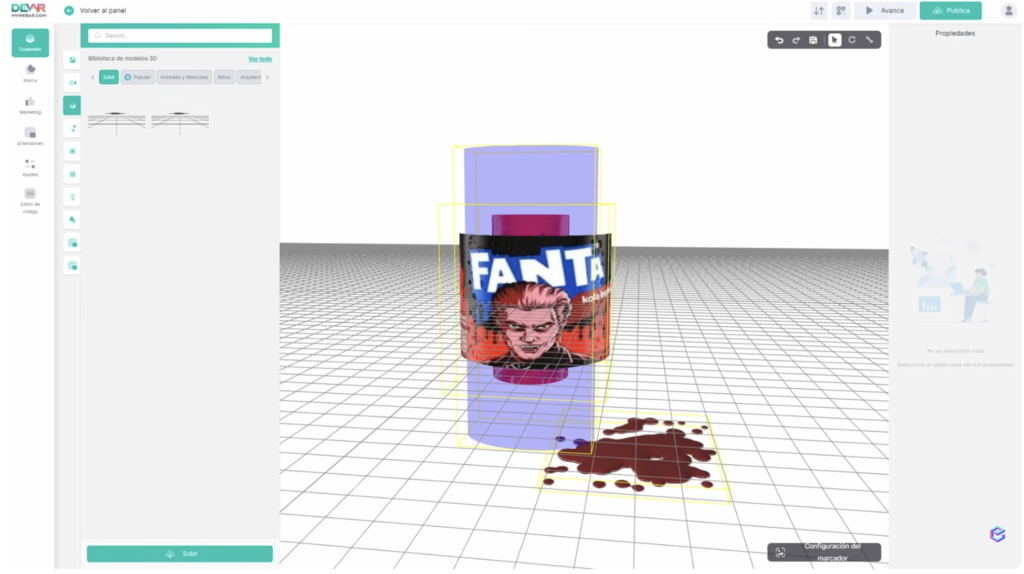
Image 6. Positioning the bottle, virtual effects and cylindrical occlusion geometry. Image credit: Emilius | AR + AI.
Step 7. Publish and Test the Experience on a Phone
With the elements positioned, Emilius saved and published the project. MyWebAR supplied a QR code, a direct link and an option to embed the experience on a website.
He opened the project on his smartphone and pointed the camera toward the real bottle. The label was recognized, the Dracula animation appeared on its curved surface, a red effect sat near the bottle, and the bat flew beside it.
The most revealing part of the demonstration comes when the bottle turns: the bat is hidden when it moves behind the bottle. That depth effect, created with Cylindrical Occlusion, is what makes the finished scene feel connected to the physical world.
The entire WebAR experience runs in the browser, without a separate app.
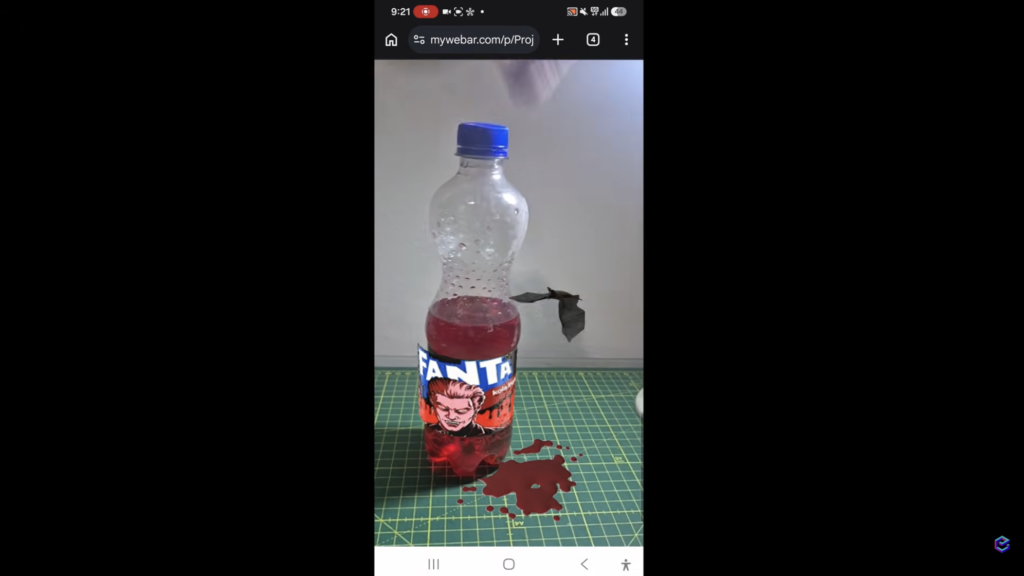
Image 7. Testing the published AR experience on a real bottle with a smartphone. Image credit: Emilius | AR + AI.
What Else Can You Create with Curved Image Tracking?
The same approach can be adapted to limited-edition beverage labels, cosmetics packaging, collectible cups, seasonal promotions and other cylindrical products. AI tools can help generate animated artwork, while MyWebAR anchors that animation to a physical object and combines it with 3D content.
A big thank you to Emilius | AR + AI for this detailed, creative walkthrough. We especially appreciate that he shares the entire process — from building the target and preparing an AI video to testing the final experience on a real bottle.
Ready to experiment with your own packaging? Start creating with MyWebAR and bring your ideas to life!
Want to learn more? Our tutorial, How to Create an AR Project with a Cylindrical Marker, walks you through the process step by step. And if you’re just getting started with MyWebAR, check out How Are Augmented Reality Projects Created? Editor Overview to get familiar with the editor and its features.